Onboarding Wizard
You have installed the Shipping Central app from Microsoft AppSource as described here and are now ready to set it up to connect Business Central to nShift Delivery. With Shipping Central you can create a new nShift Delivery account, connect to an existing account or use a demo account for evaluation.
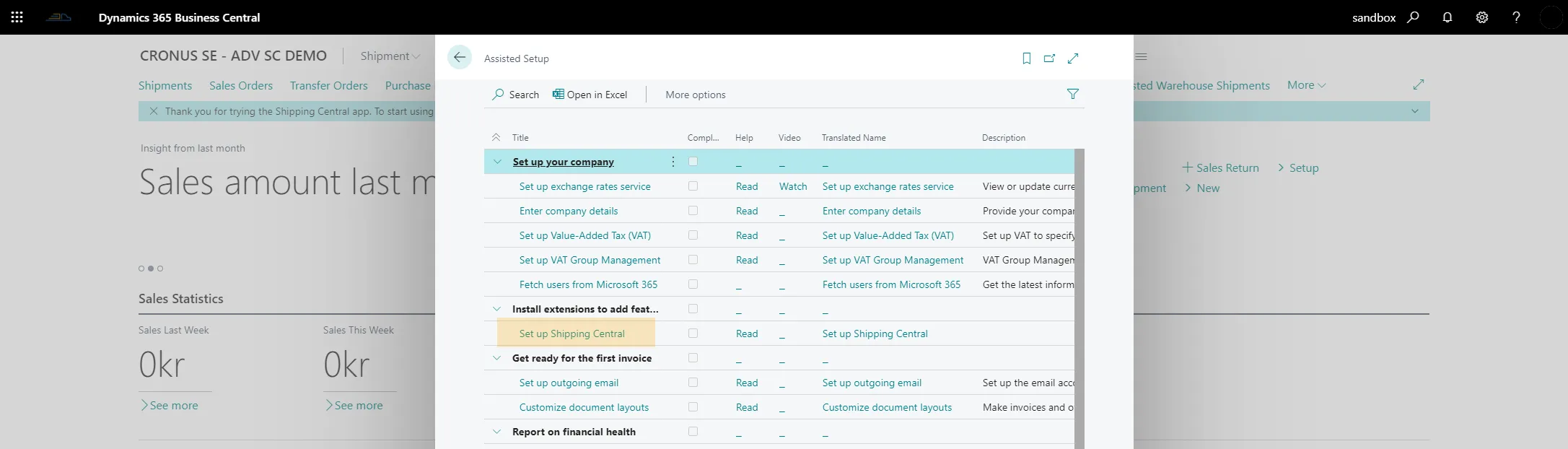
When you start Business Central after installing Shipping Central, a prompt to run Assisted Setup is shown. Press the line to open the Assisted Setup list.

The Assisted Setup list can also be opened by searching for Assisted Setup.

In the Assisted Setup list, press "Set up Shipping Central" to open the setup wizard.
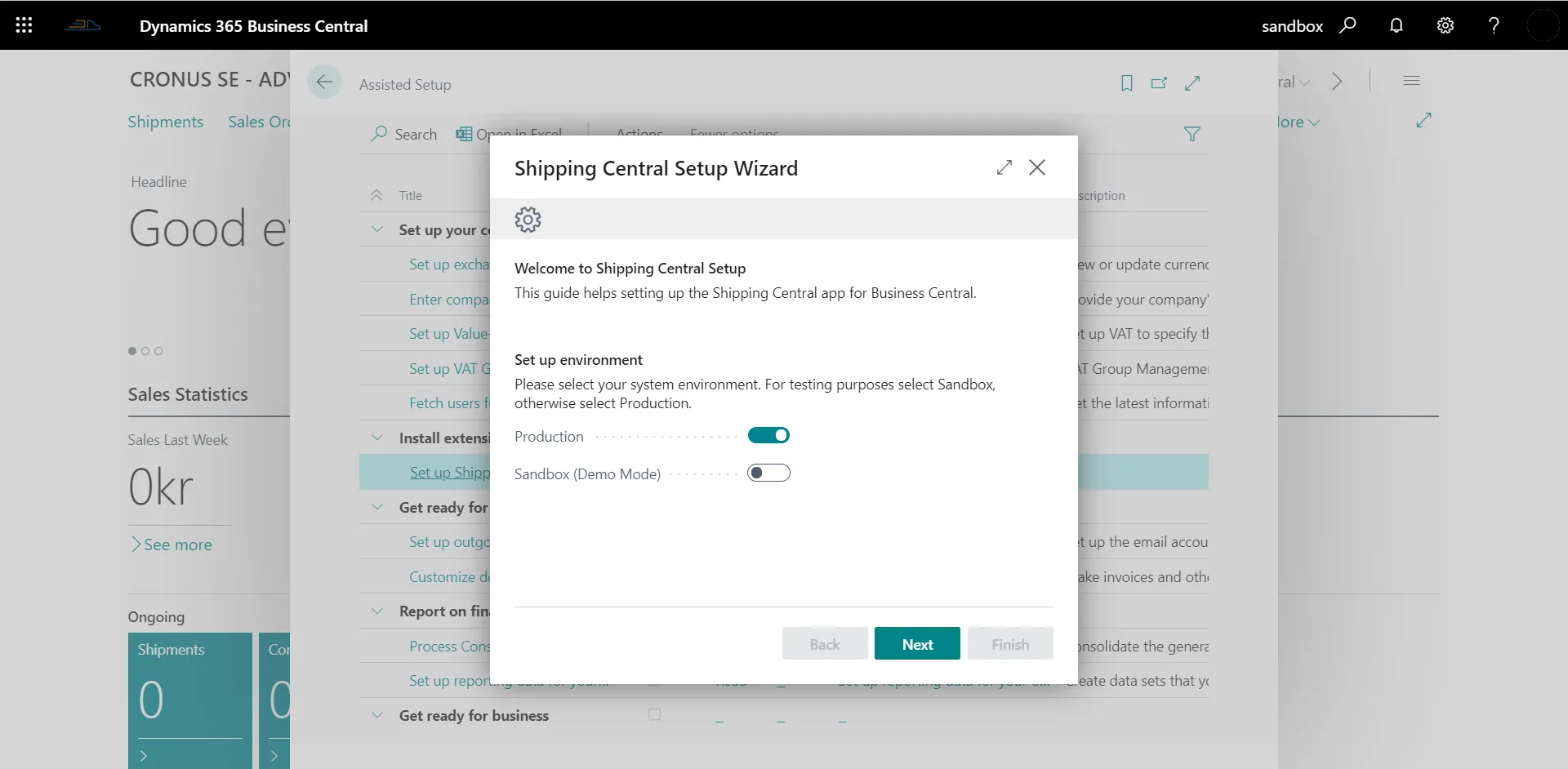
On the first page of the wizard you can choose to set up Shipping Central as a demo/evaluation environment or as a production environment.
In demo mode all functions are available for testing with a set of fifteen predefined carriers. No real bookings are made, but you can test the app's functions and print test shipping labels. To set up demo, select Sandbox (Demo Mode) and press Next.
To set up Shipping Central with an nShift account for production, make sure Production is selected and press Next.
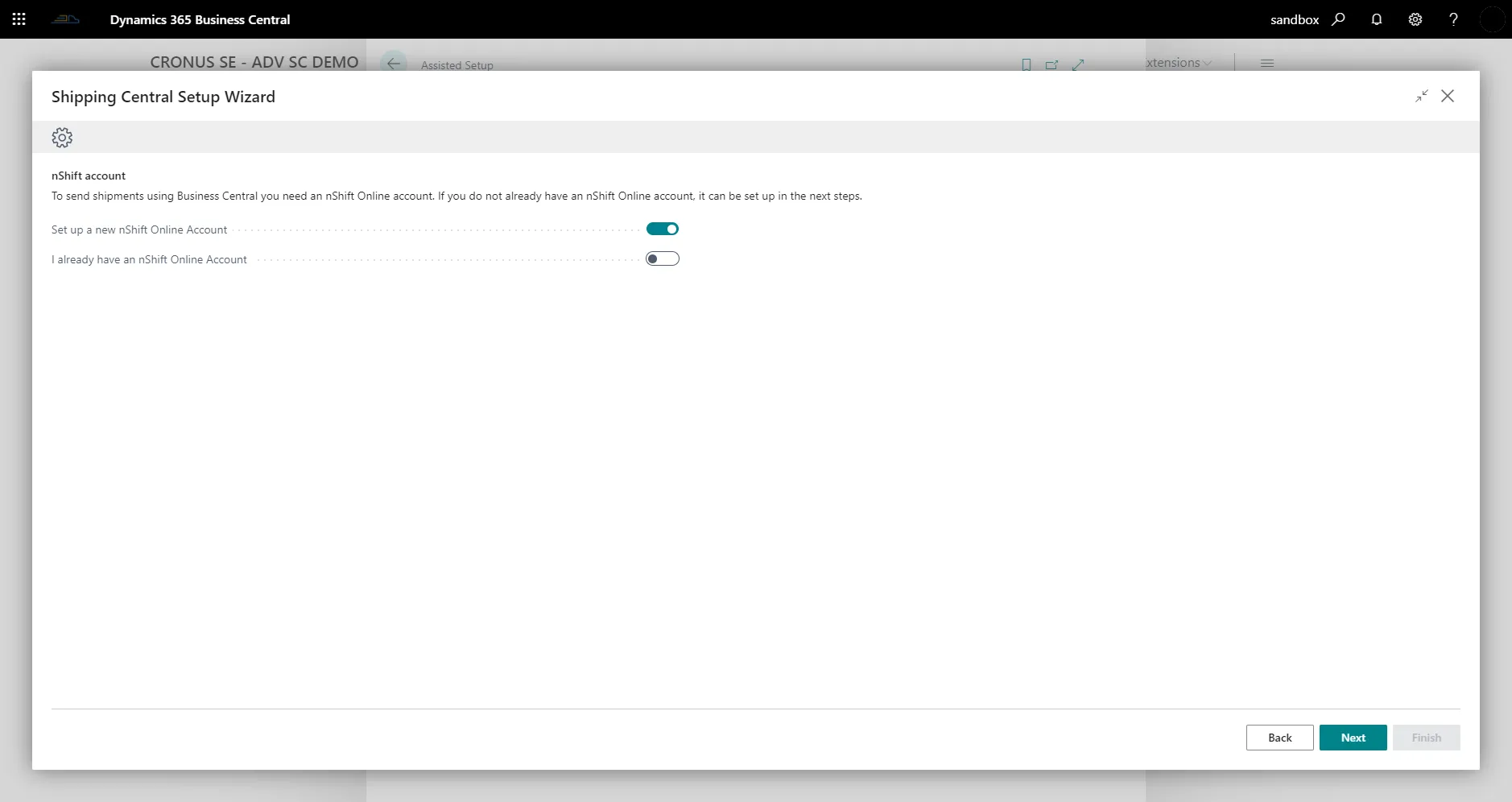
When running in production mode you can create a new nShift Delivery account or use an existing one. See "New nShift Delivery account" below for how to create a new nShift Delivery account. If you already have an account that you want to use, scroll down to "Use existing nShift Delivery account".
New nShift Delivery account
To create a new account, make sure the "Create new" option is selected and press Next.
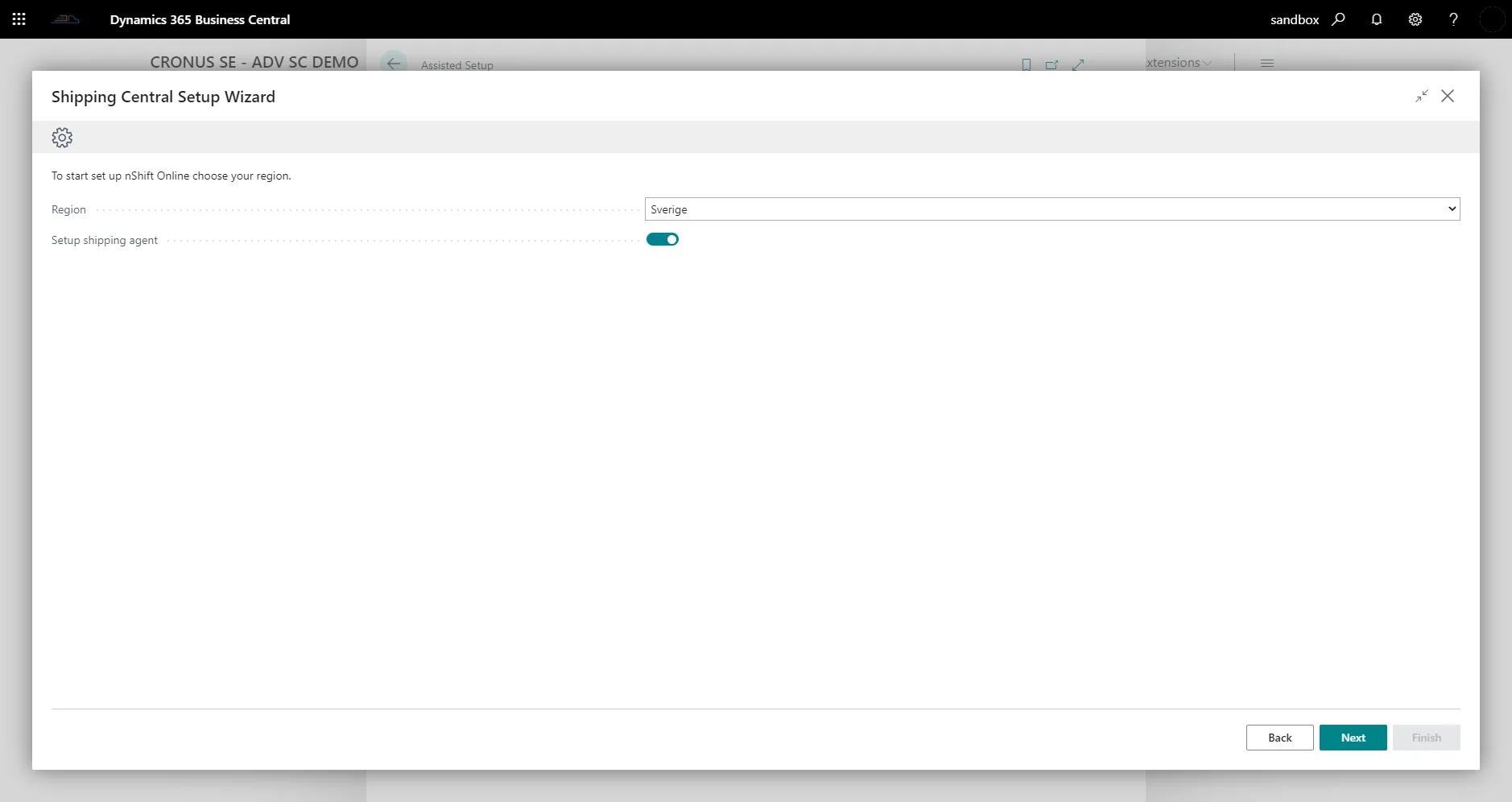
Choose your region in the drop-down menu.
In Business Central, shipping agents and shipping agent services are used on sales orders and other source documents to describe how an order is to be shipped. To let the setup wizard add shipping agents and shipping agent services, make sure the Setup shipping agent option is selected; otherwise clear it.
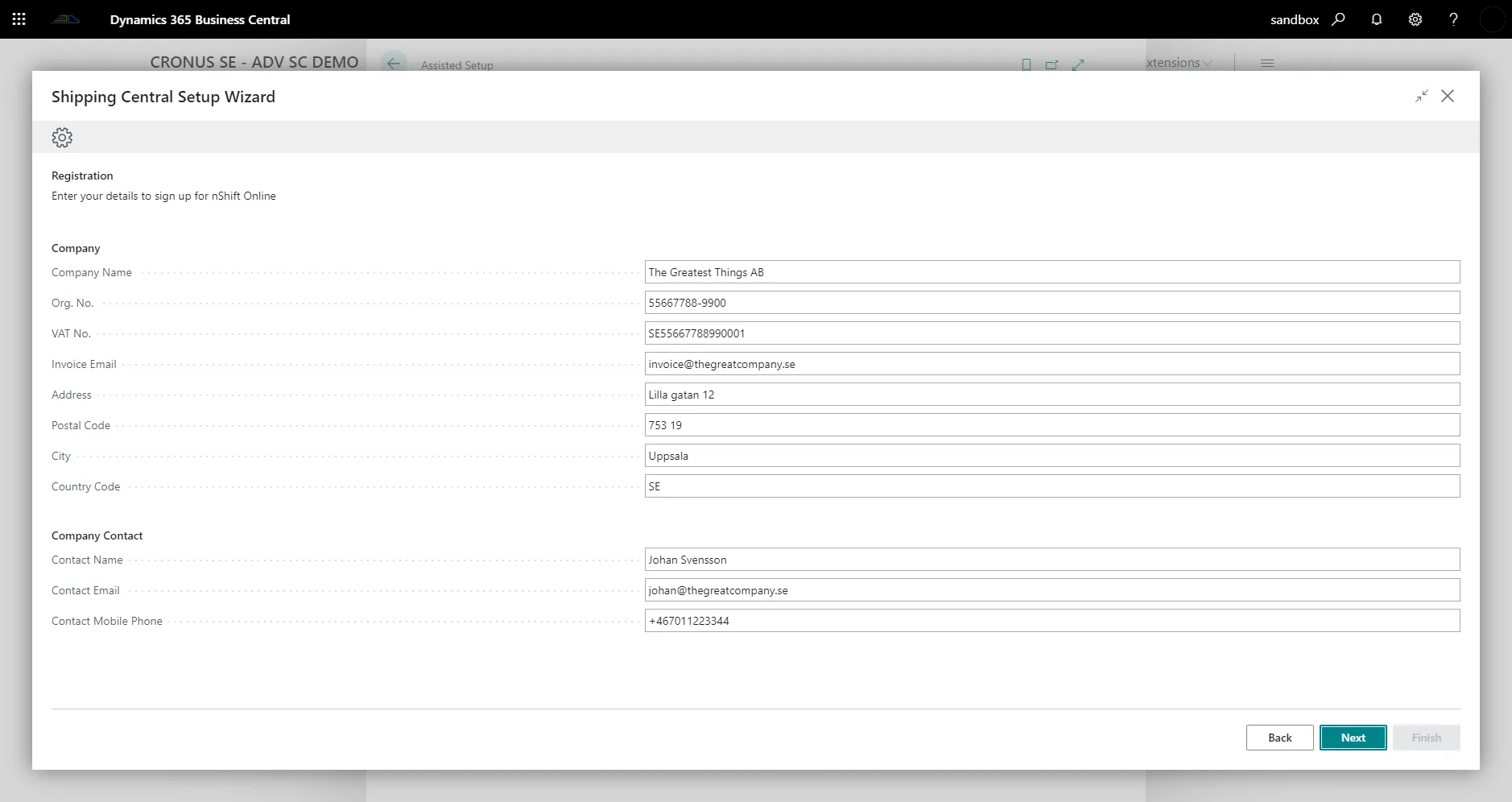
Fill in your company details and contact details and press Next.
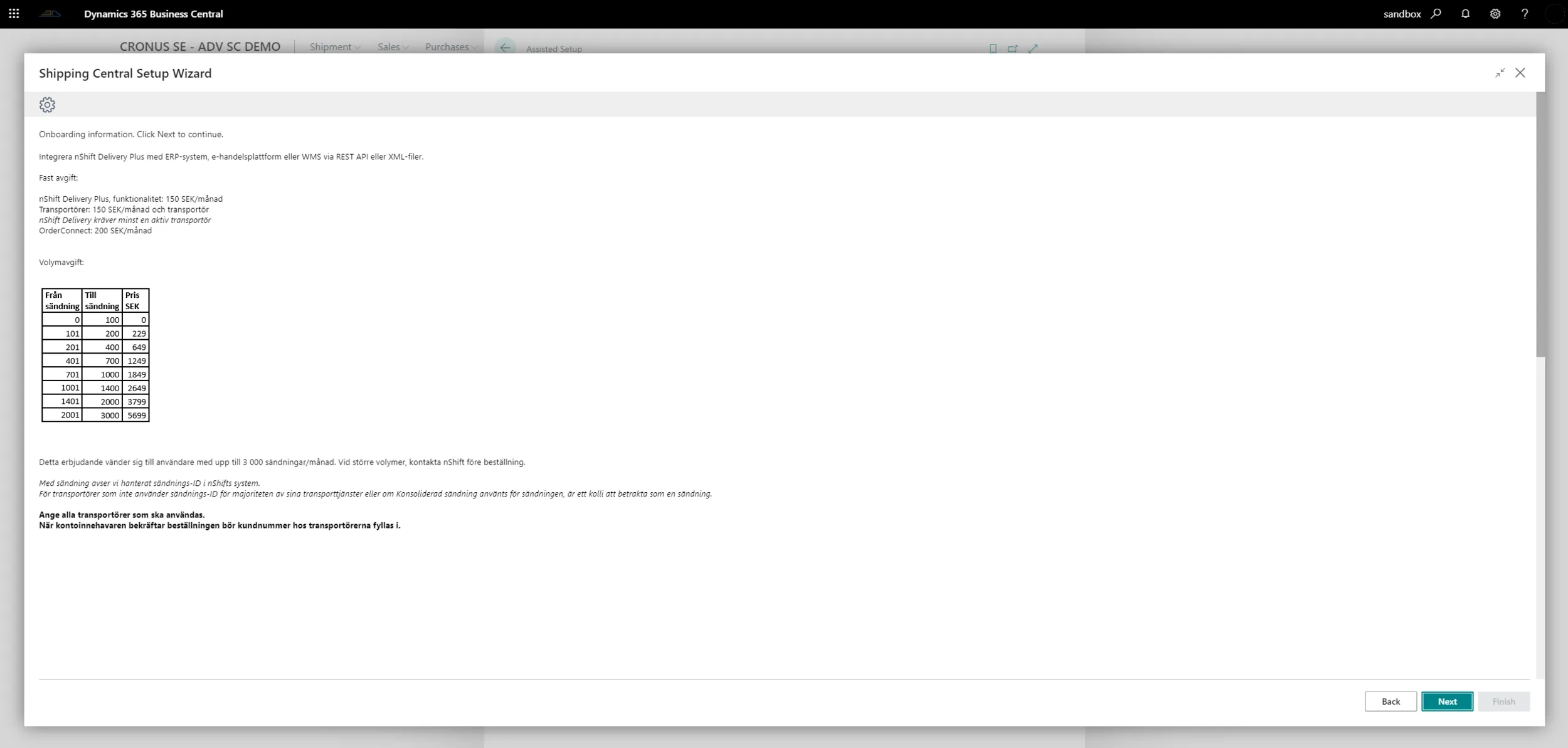
Read and accept nShift's pricing information by pressing Next.
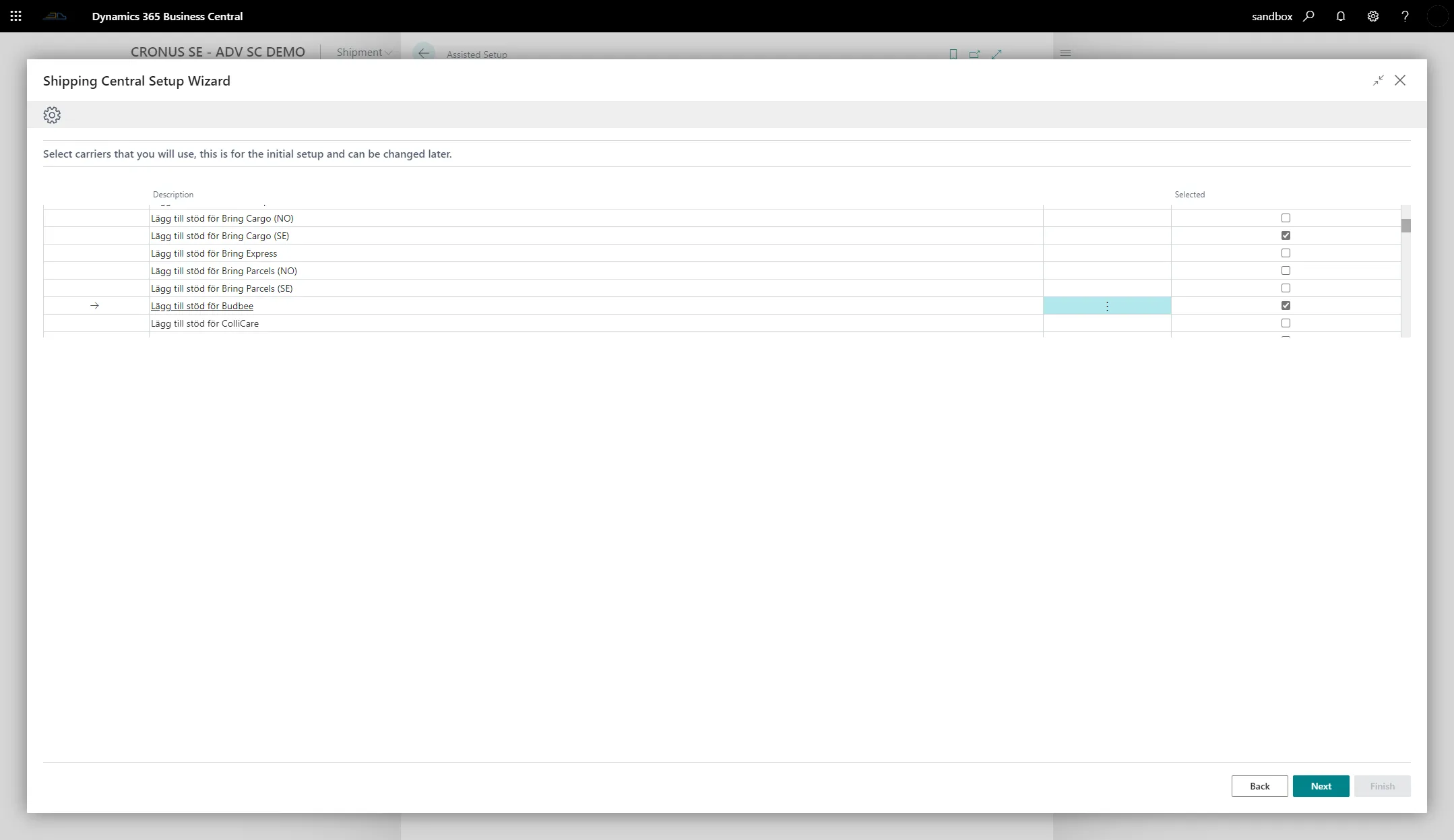
In the drop-down menu of carriers, choose the ones you use by selecting Selected, and when you are done press Next.
Note that more carriers can be added to the nShift Delivery account later.
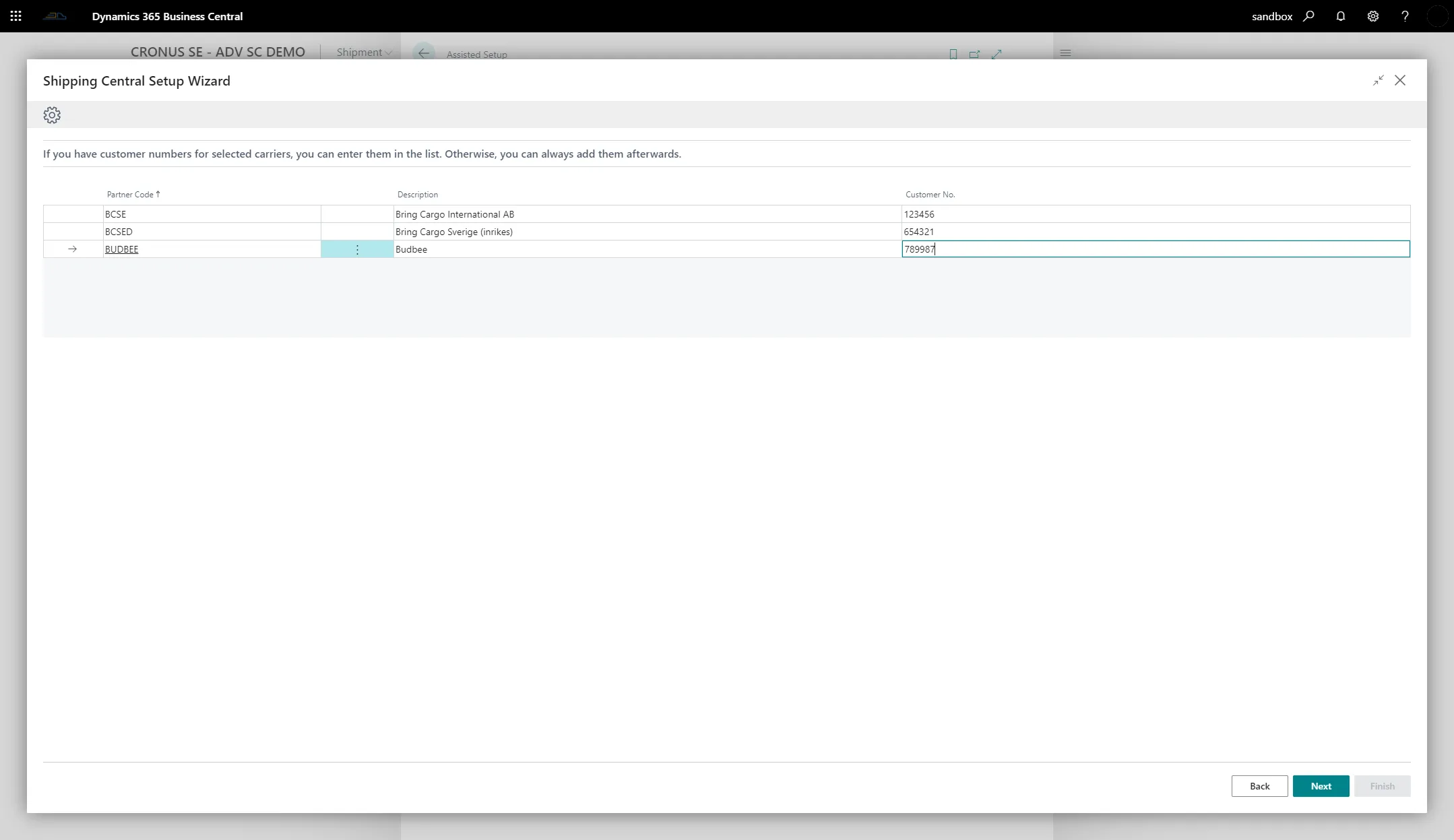
Add your customer number for the carriers and press Next. If you do not have your customer number, you can add it later from the Shipping Central Setup page. (Read more about how to add carrier agreement numbers.)
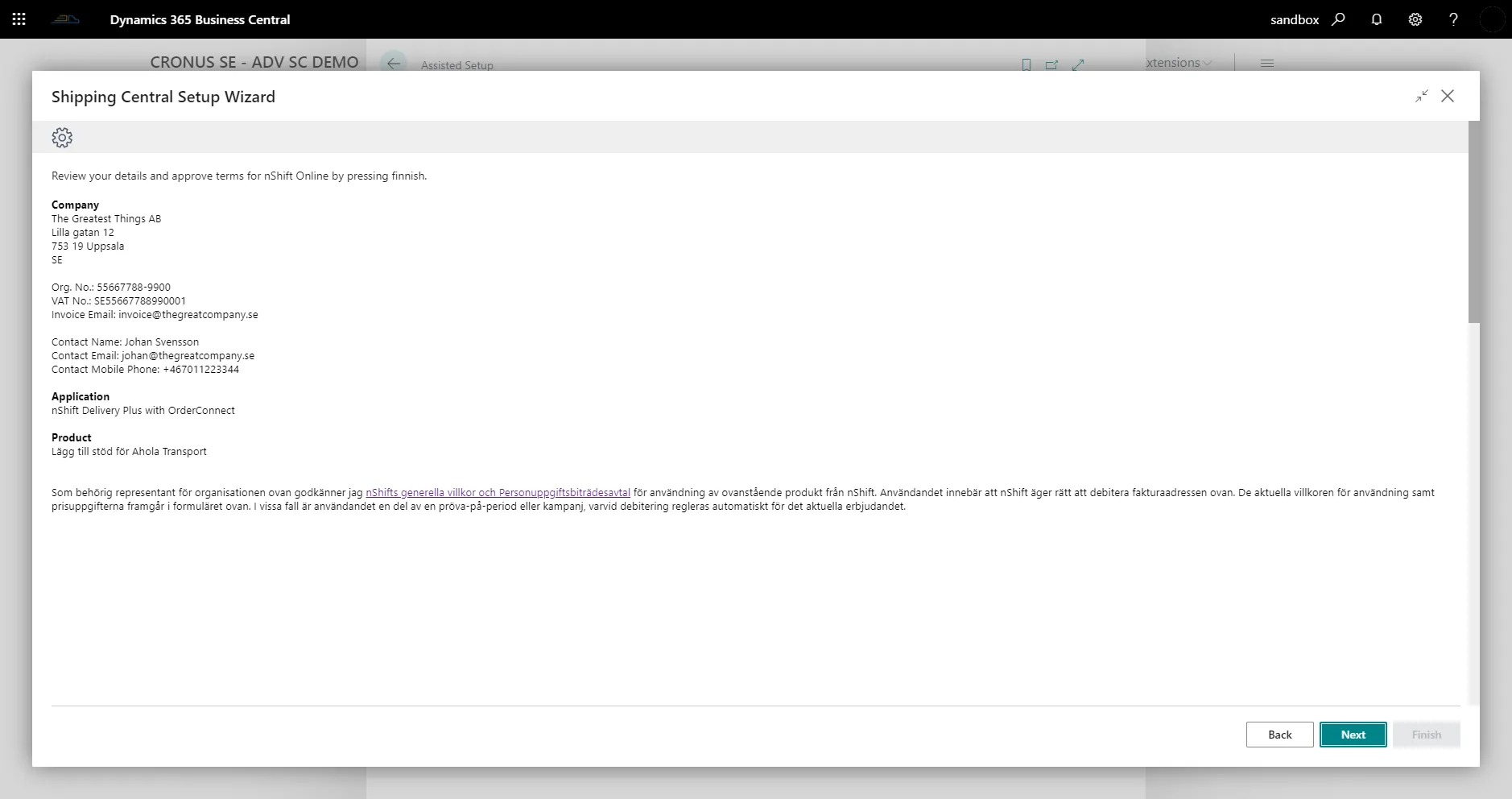
Review the nShift Delivery account to be set up and confirm it by pressing Next.
Now press Finish to complete the setup.
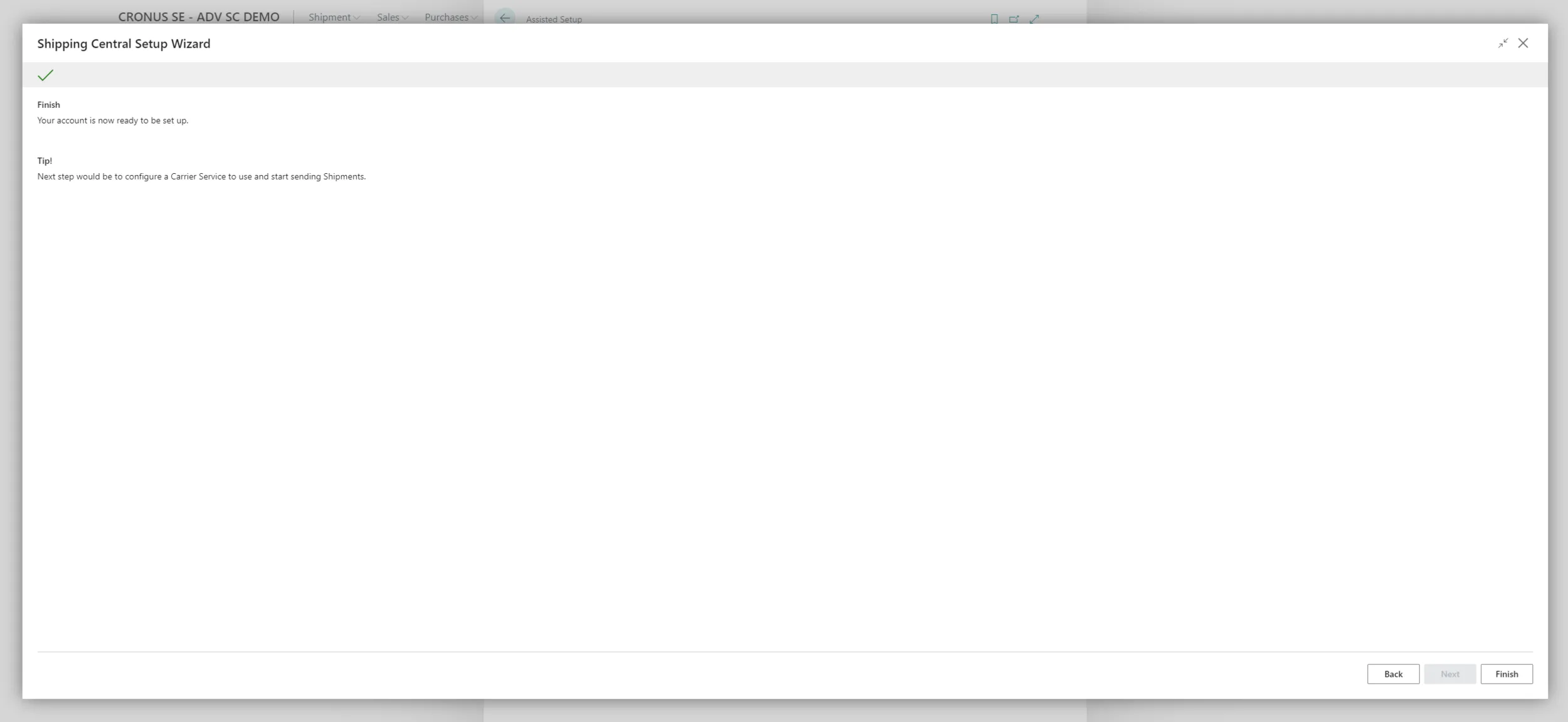
Your new nShift Delivery account is now ready to use. You will receive an email with a confirmation and information about how to access the nShift Delivery portal if needed.
Your new account is now connected to Shipping Central and can be used in Business Central.
Use existing nShift Delivery account
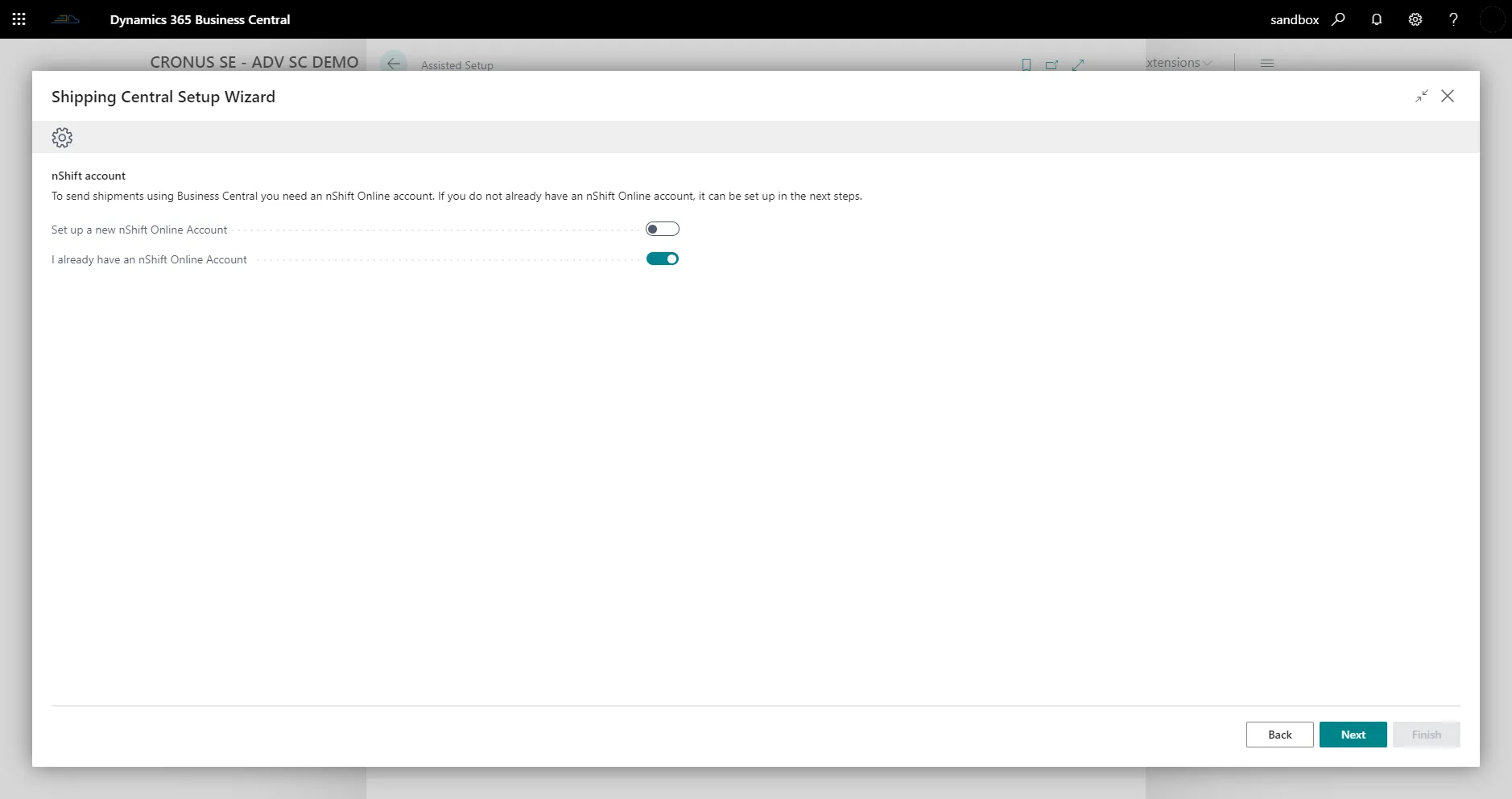
To set up your existing account, select the option "I already have an nShift Online Account" and press Next.
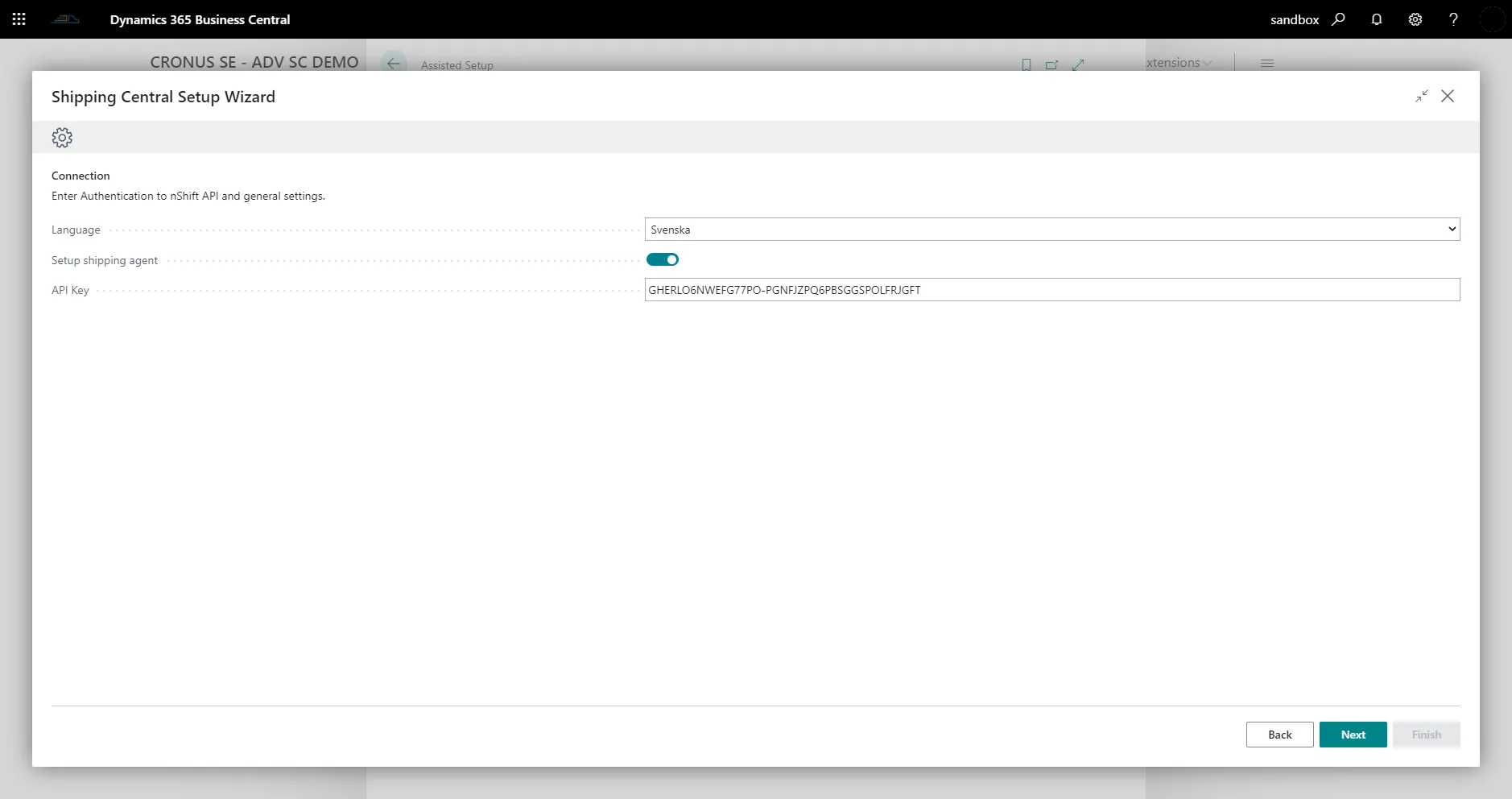
Enter the preferred language (the language the carrier services are shown in) and the nShift Delivery API key. How to get your nShift Delivery API key is described here.
In Business Central, shipping agents and shipping agent services are used on sales orders and other source documents to describe how an order is to be shipped. To let the setup wizard add shipping agents and shipping agent services, make sure the Setup shipping agent option is selected; otherwise clear it.
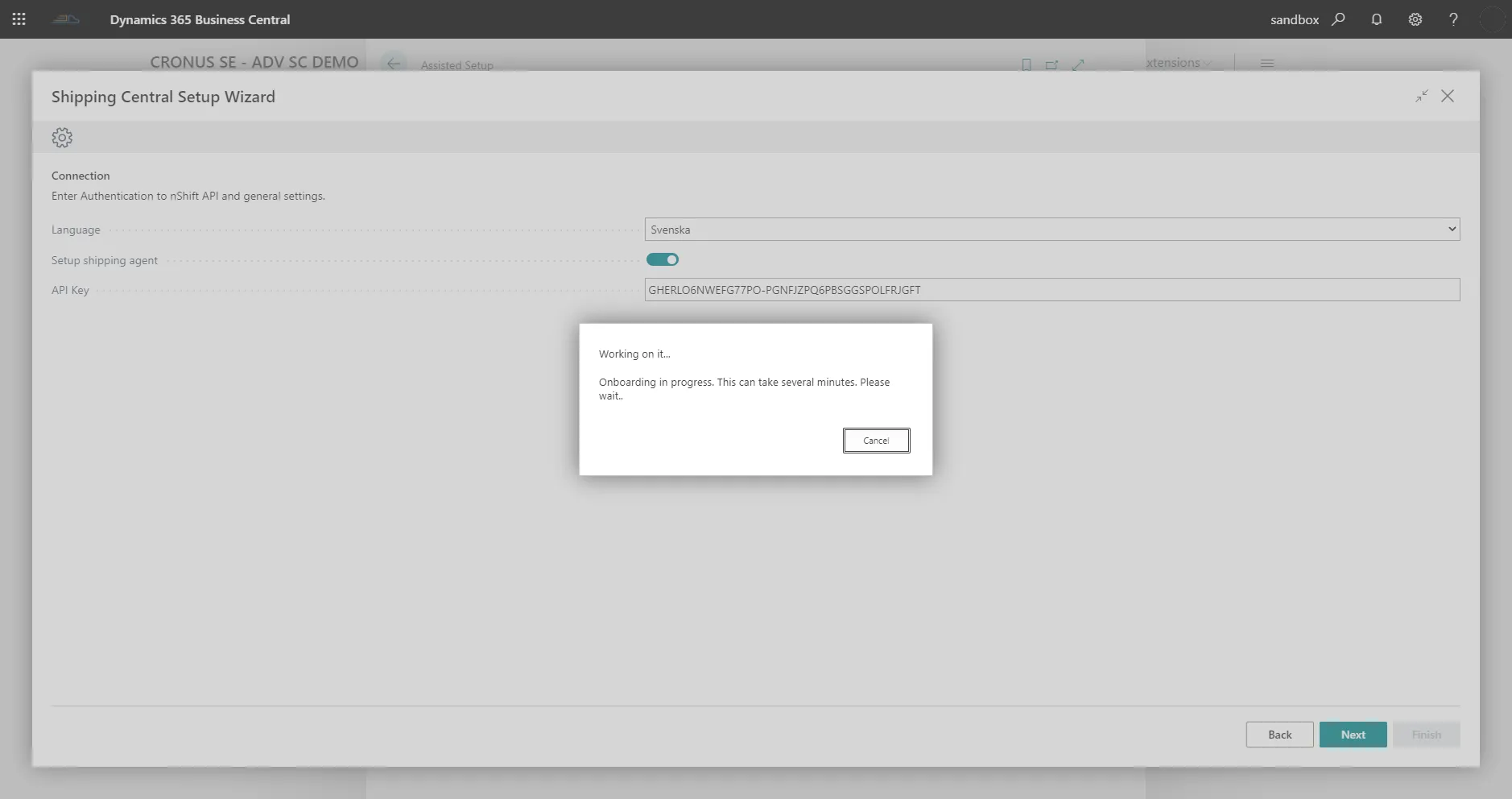
Wait until the onboarding process has finished. Shipping Central now communicates with the nShift Delivery service and downloads all carriers, carrier services and settings available on your account and sets them up in Business Central.
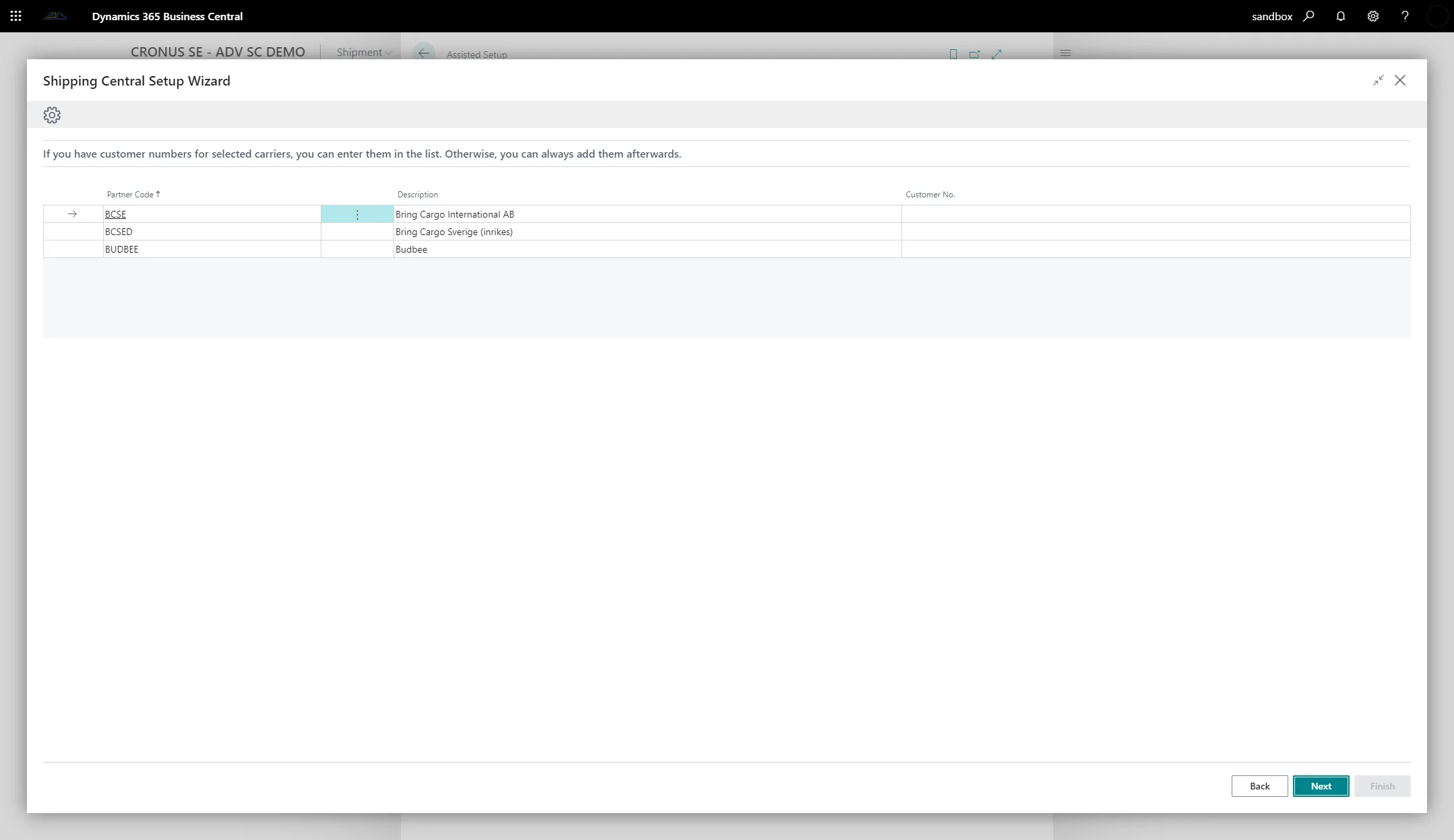
When the carriers on the account have been registered, add your customer number for the carriers and press Next. If you do not have your customer number, you can add it later from the Shipping Central Setup page. (Read more about how to add carrier agreement numbers.)
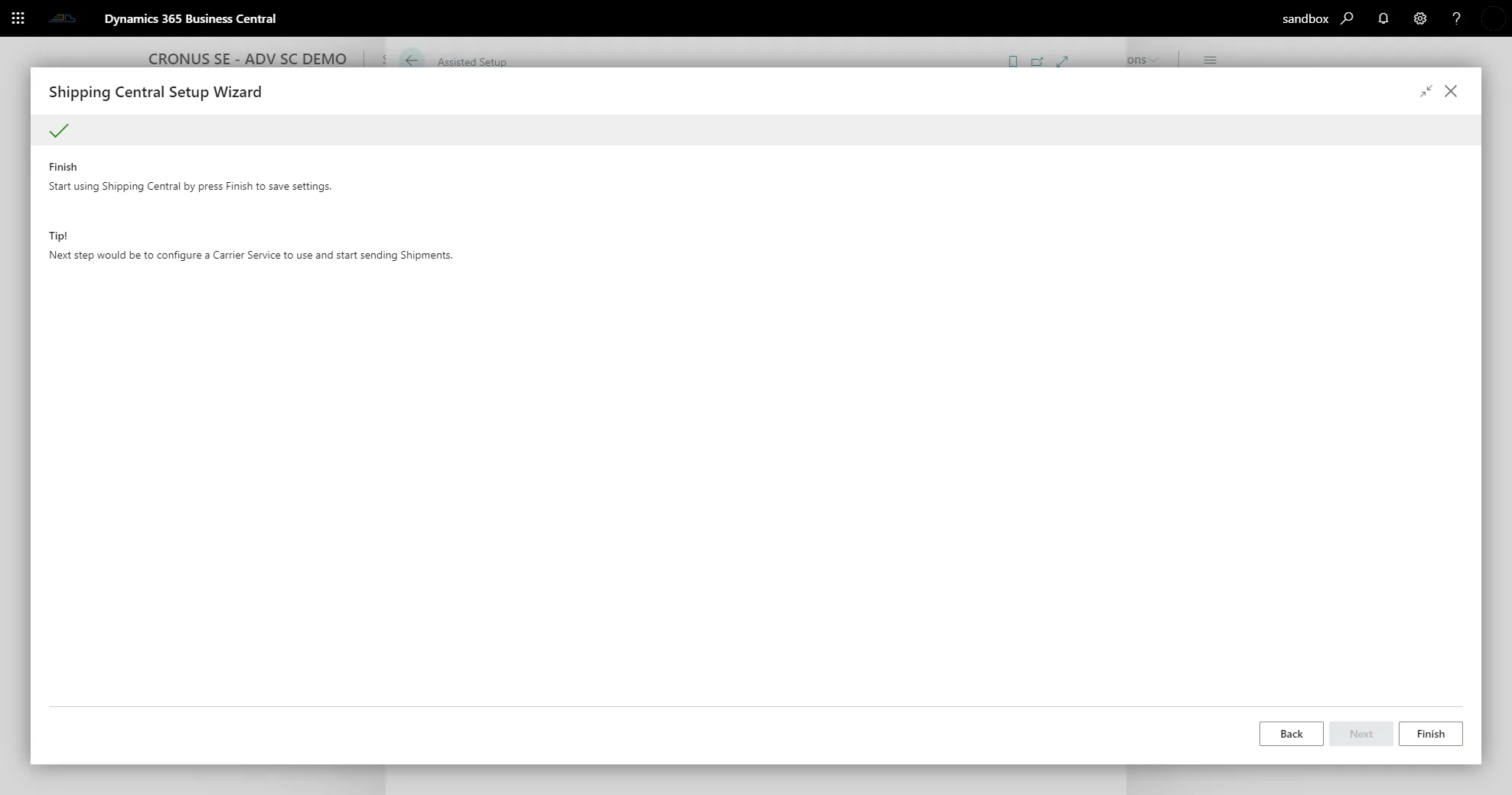
Now press Finish to complete the setup.
Shipping Central and nShift Delivery are now connected to each other through your nShift Delivery account.
The next step before you start printing shipping labels is to set up PrintNode and connect your label printer.