Set up PrintNode
An important part of the shipping process is printing shipping labels and sometimes waybills and customs invoices. To print from a web-based system like Business Central, a cloud print service is needed. Shipping Central uses PrintNode. This post shows how to set up PrintNode and printers in Shipping Central.
You can use an existing PrintNode account or sign up for one at printnode.com.
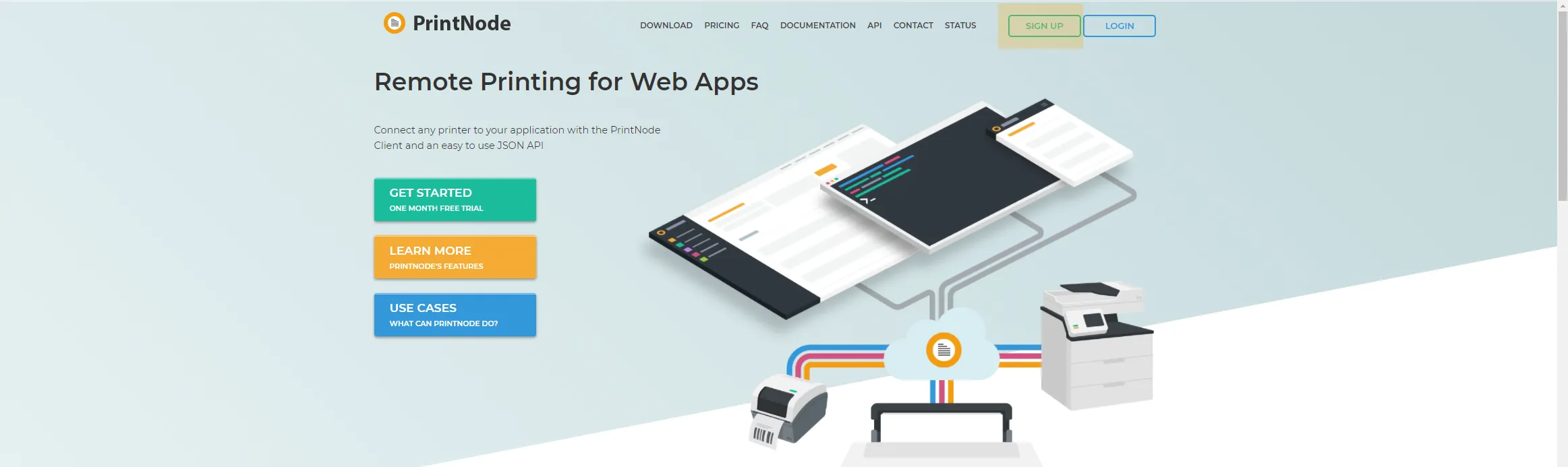
For PrintNode to communicate with your printers, print service software must be installed on the computer the printer is connected to, or on a computer that has the printer mapped on the network. If you install it on a computer on the network, make sure it is always switched on when you want to ship.
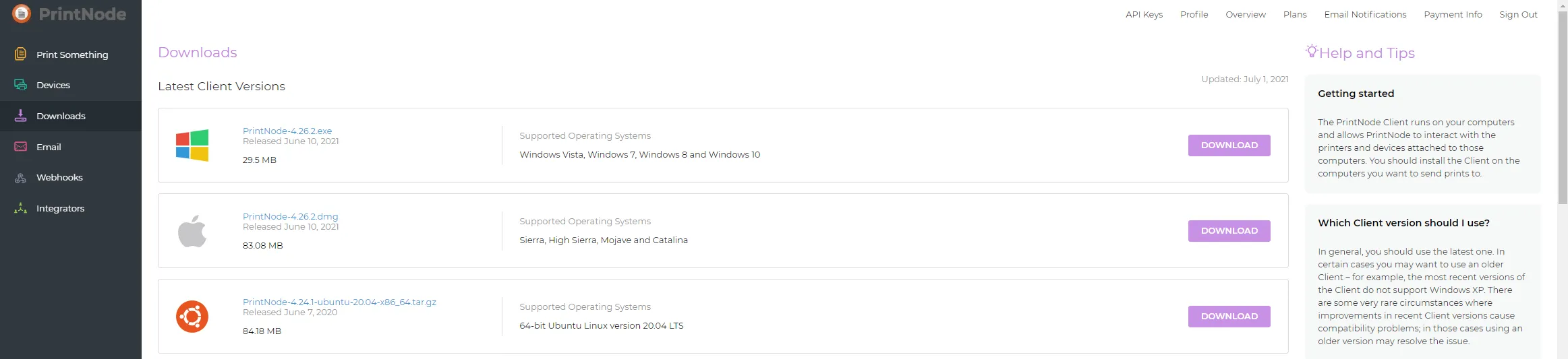
Log in to your PrintNode account, click Downloads, find the version you are going to install and click the Download button next to it.
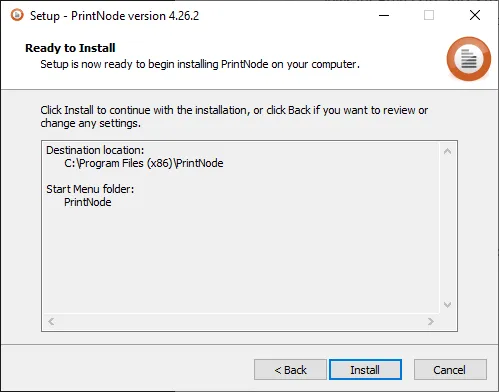
When the download is complete, find the downloaded file in your downloads folder and run it to start the installation of PrintNode Client. Accept the license, follow the installation wizard and finish by pressing Install.
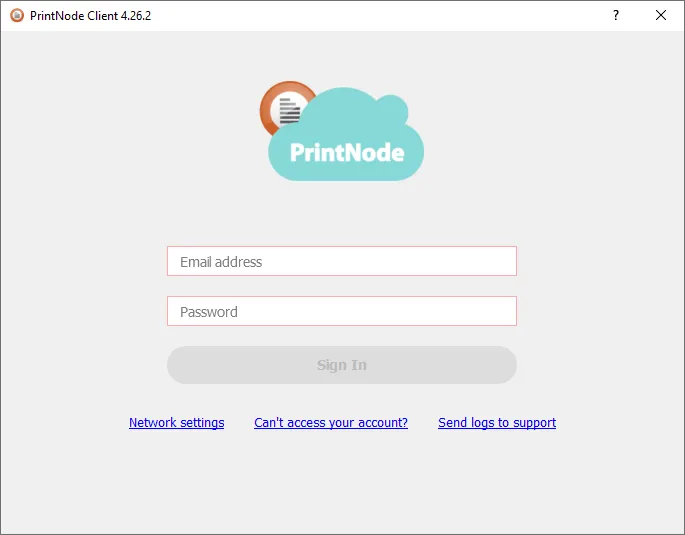
When the installation is complete, PrintNode Client starts and asks you to log in with your PrintNode account.
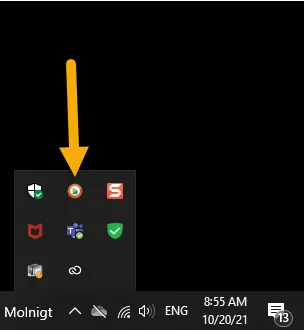
When you are logged in, PrintNode Client is found under the Windows flag or in the Windows taskbar.
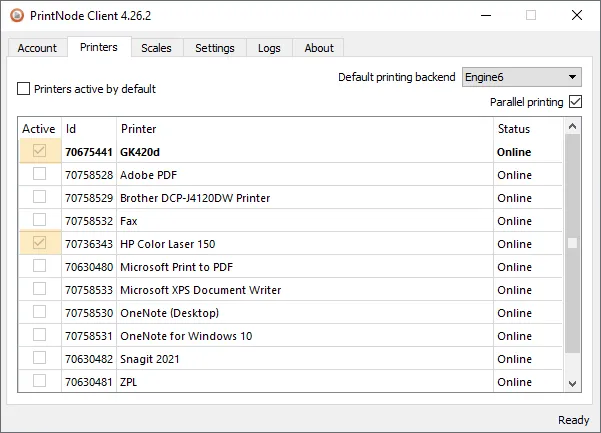
In PrintNode Client, on the Printers tab, select the printers that are to be available online by checking the Active box.
Install PrintNode Client and make the settings on computers that have access to all the printers you will use from Shipping Central. By using the same PrintNode account, all the different printers are available for use from Business Central.
The next step is to connect PrintNode to Shipping Central. This is done with a PrintNode API key. Log in to your PrintNode account and click API Keys. To access the API keys, you need to confirm with your PrintNode password.

To create a new API key, add ShippingCentral as the API key description and press Create.

The API key is now created and shown in the list. Copy the API key, which we will soon add to Business Central.

When the printers are connected to PrintNode through PrintNode Client and an API key, it is time to set up printing in Shipping Central.
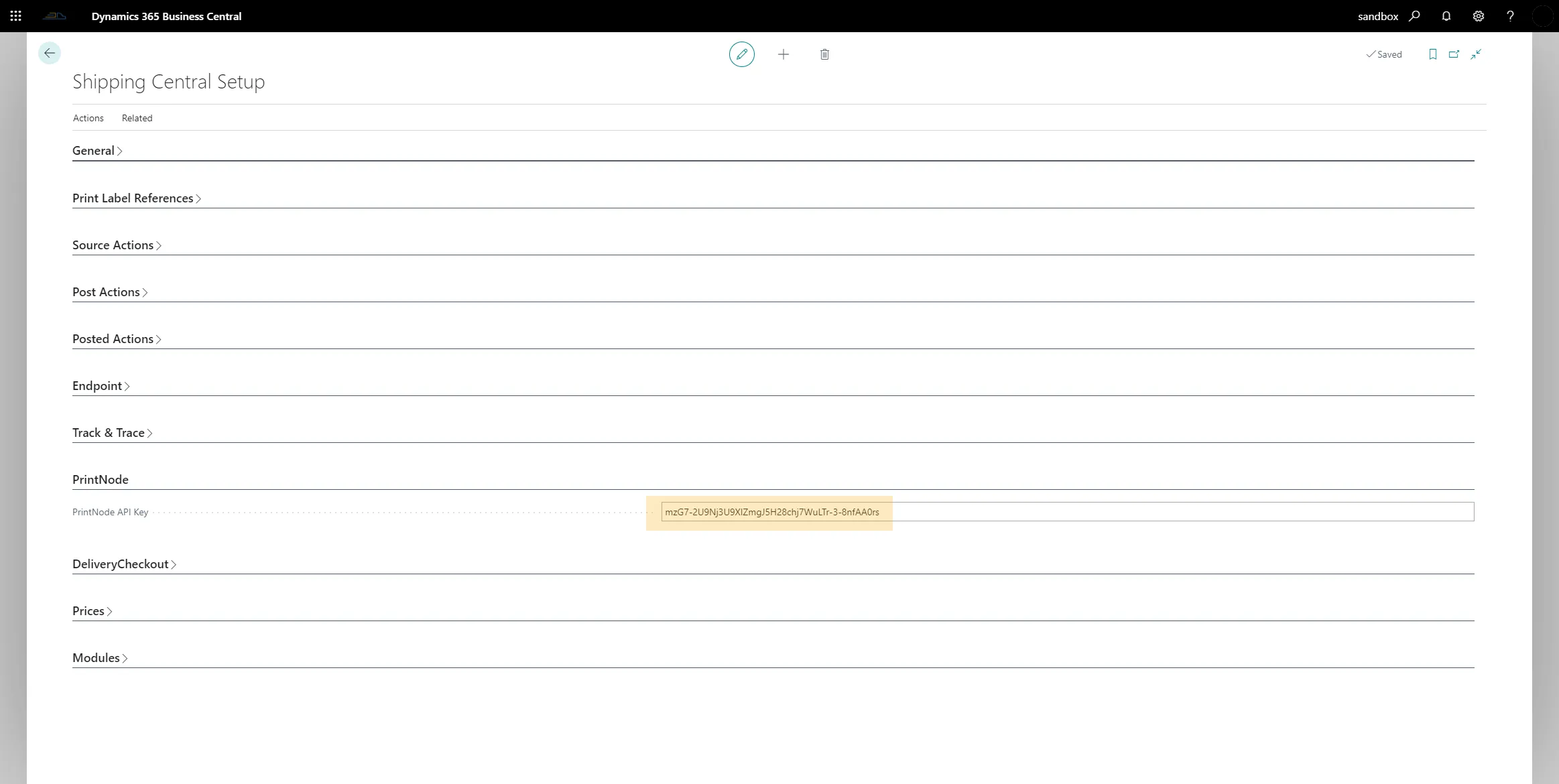
On the Shipping Central Setup page, paste the API key you copied from PrintNode into the PrintNode API Key field.
Open the PrintNode Printers list from the Shipping Central Setup page under Related / Setup / PrintNode / Printers.

On the PrintNode Printers page, choose Printer IDs under Actions / Get. This downloads all the printers we have added in PrintNode so that they can be used in Shipping Central.

In the list of available printers, now set which printer is to be used for shipping labels and which is to be used for other documents, such as waybills and customs invoices.
In a setup with only one label printer and one laser printer, set Content Type Label for the label printer and Content Type pdf for the laser printer.

In an environment with several printers, which can be in the same location or spread across different locations, you can control which users print on which printers. Click the number in the User ID column for the printer you assign to a user and add the user to the list.


PrintNode and the printers are now set up, and Shipping Central is ready to start printing.