
Install the app
The first thing to do when you start using Shipping Central is to install the app in your Business Central. Shipping Central is published on Microsoft AppSource, where you always find the latest version.
To install extensions from AppSource, your user in Business Central must have the right permissions. You must either be a member of the user group EXTEND. MGT. - ADMIN or have the permission set EXTEND. MGT. - ADMIN. This can be set up on the Users page by someone with administrator permissions.
You find Shipping Central on AppSource here, or by searching for it in Business Central.
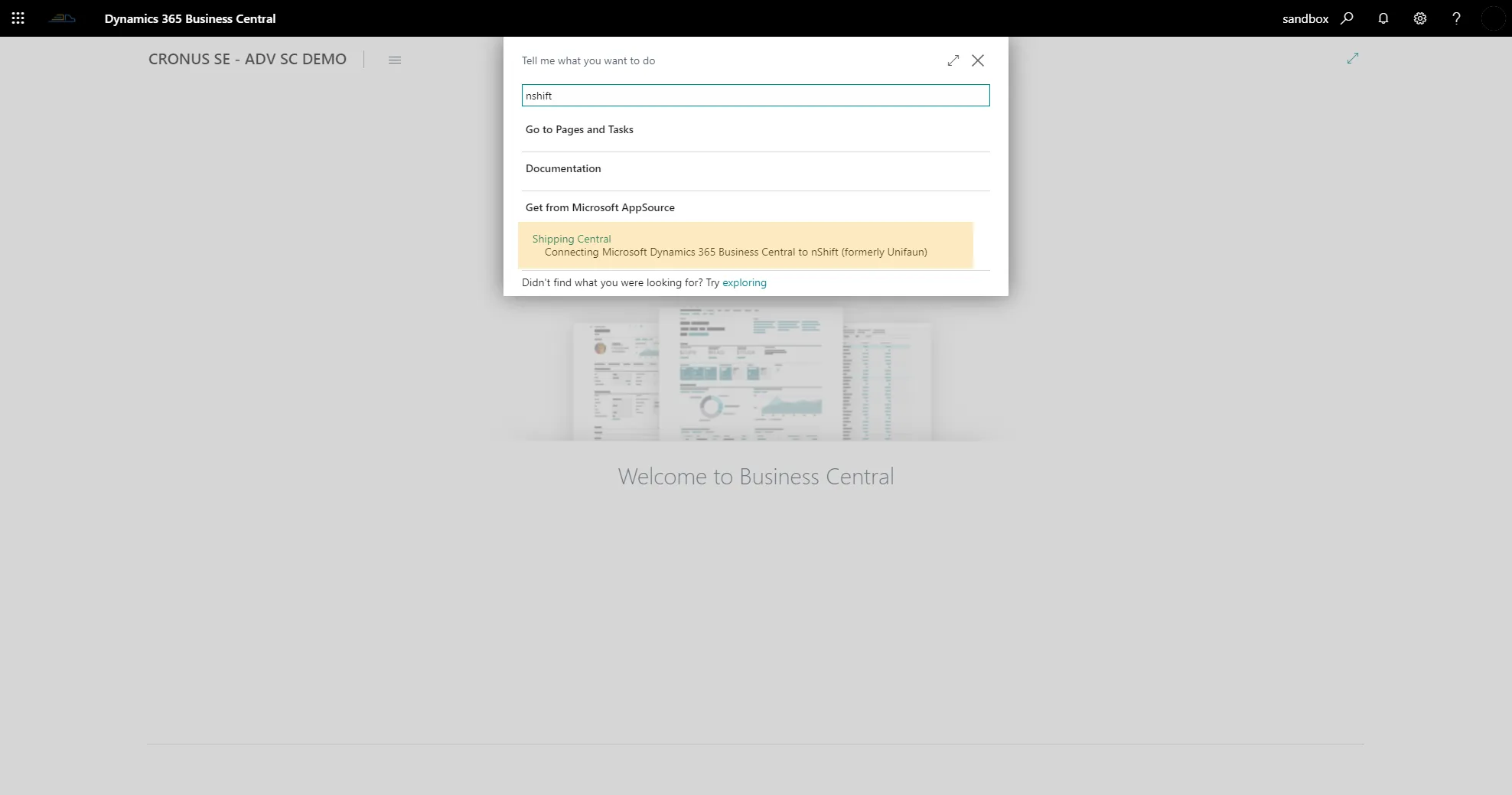
In AppSource, on the Shipping Central page, press the Free trial button.
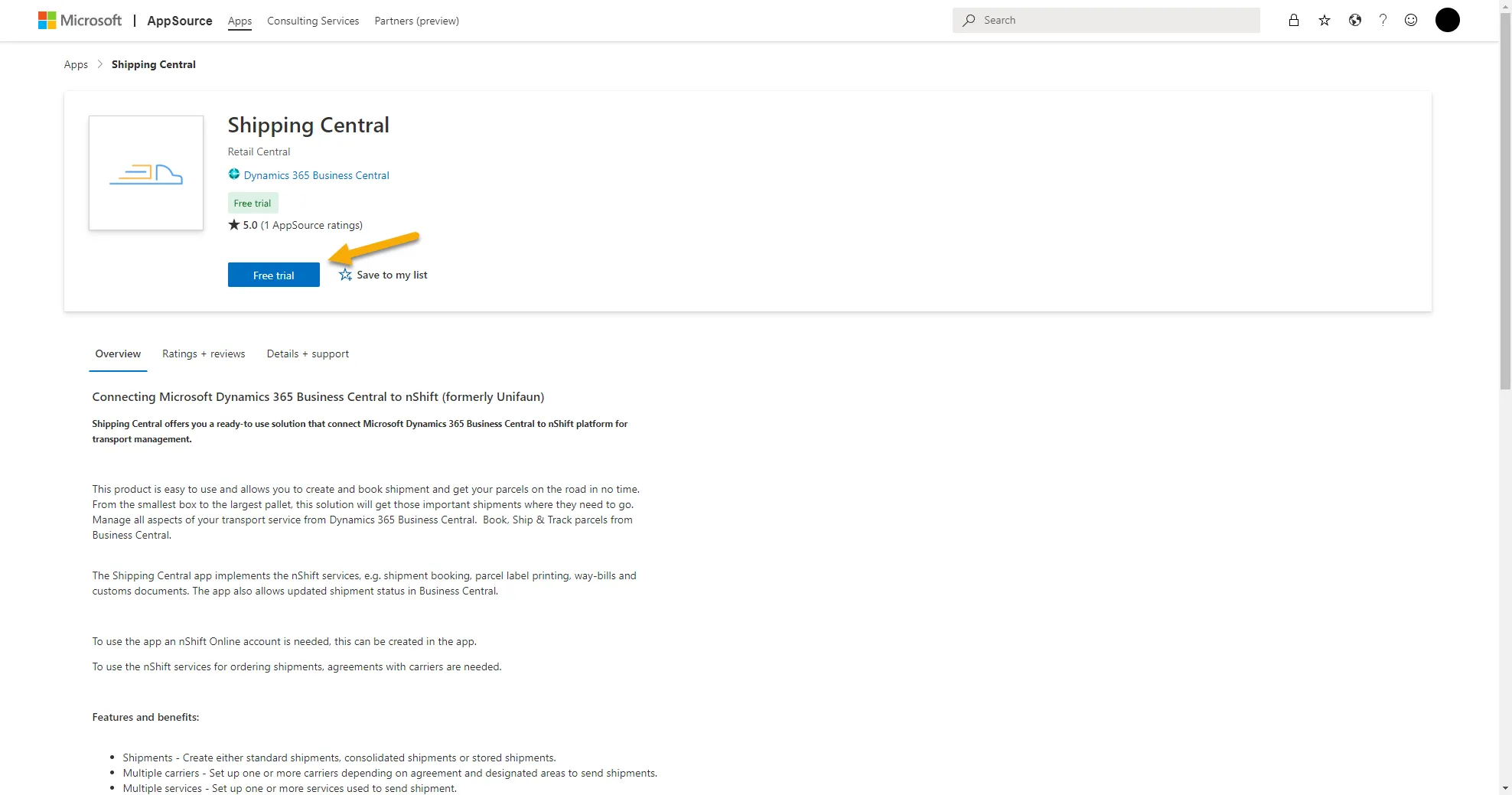
If you are not logged in, you will be asked to do so. Log in with the same account that you use for Business Central. Check the box to accept the terms and press Continue.
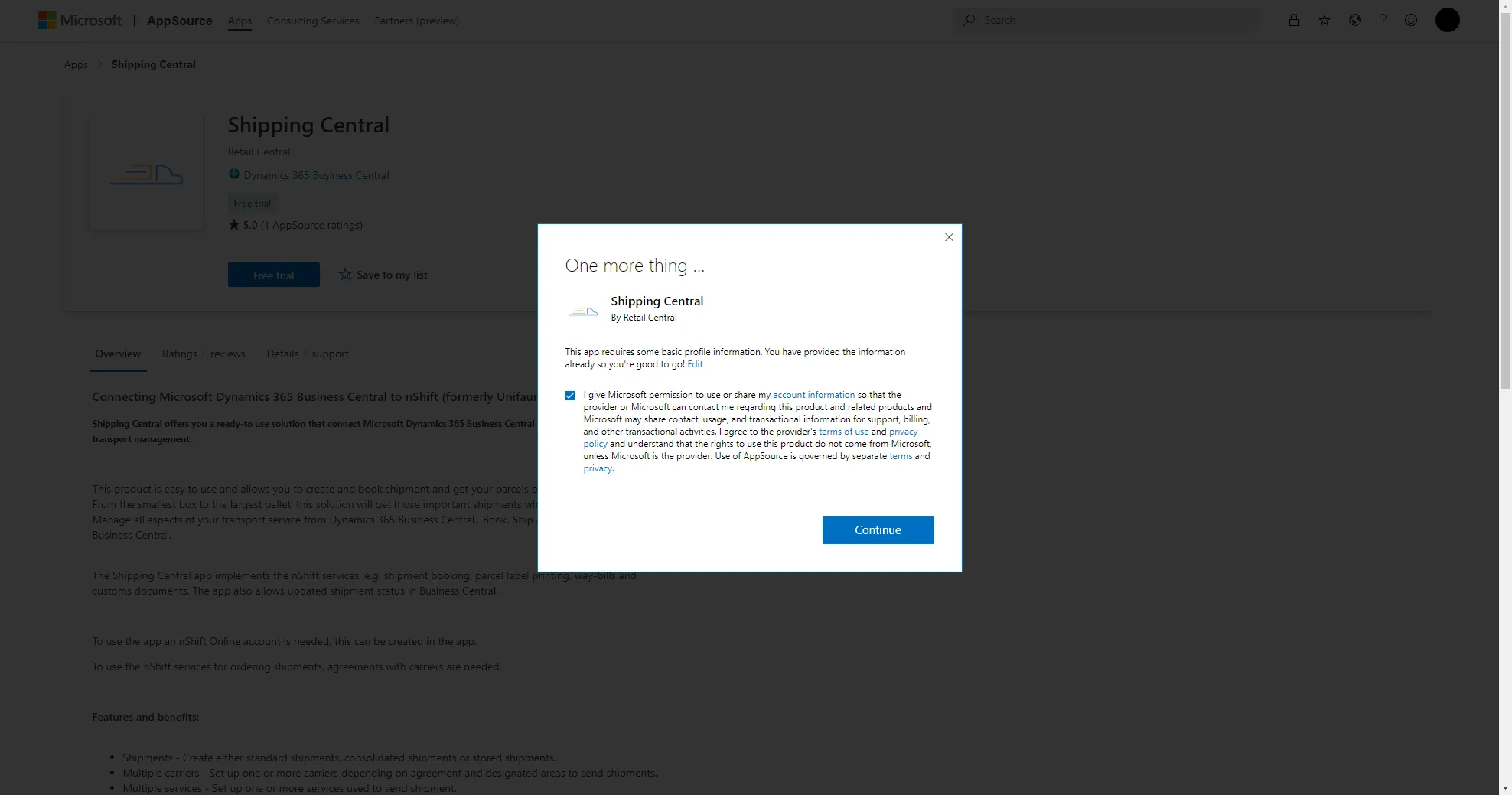
You now get a list of your Business Central environments. Choose the environment where the app is to be installed and press Install.
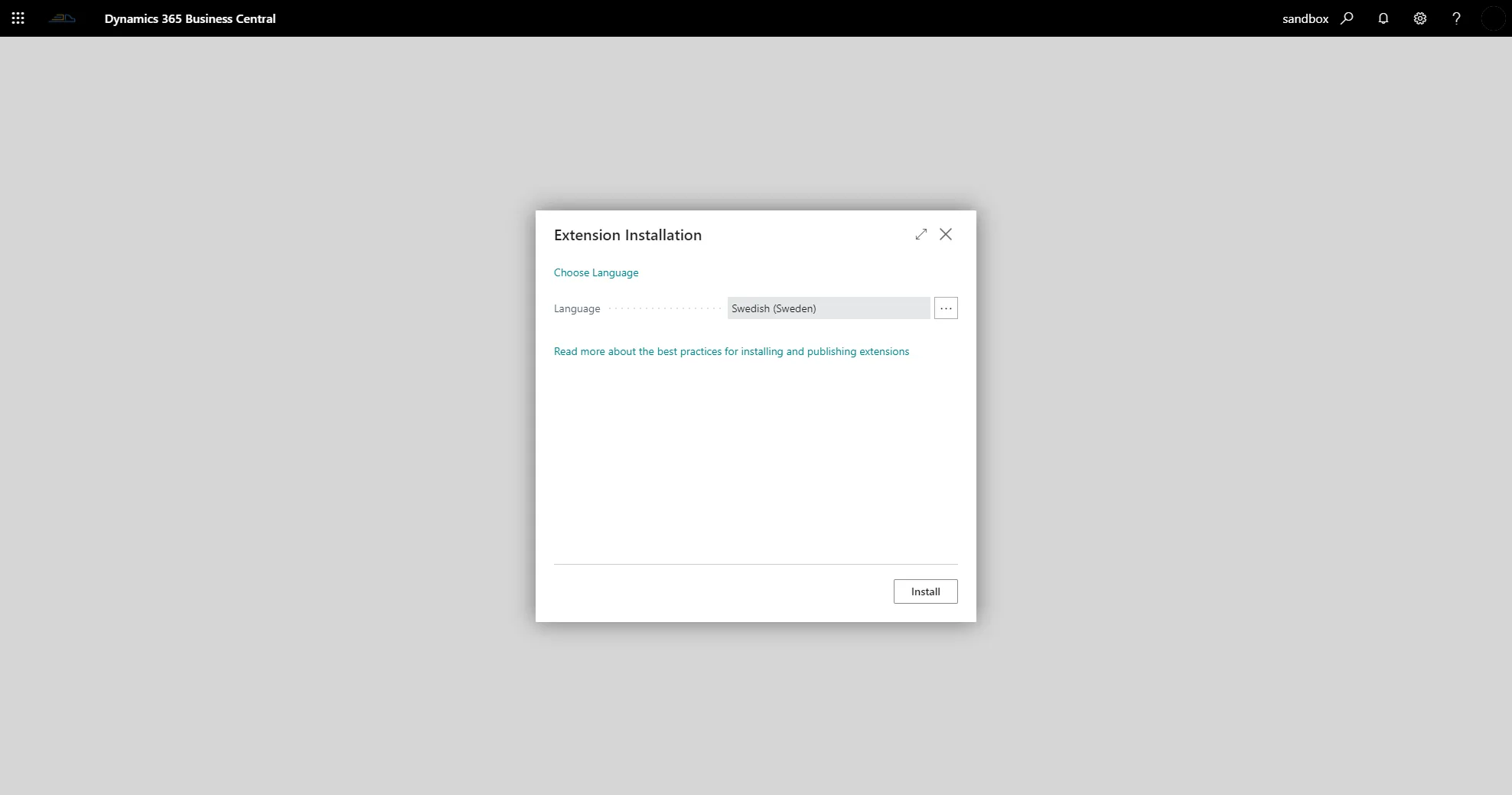
Business Central is now open. Set the installation language for the app and press Install.
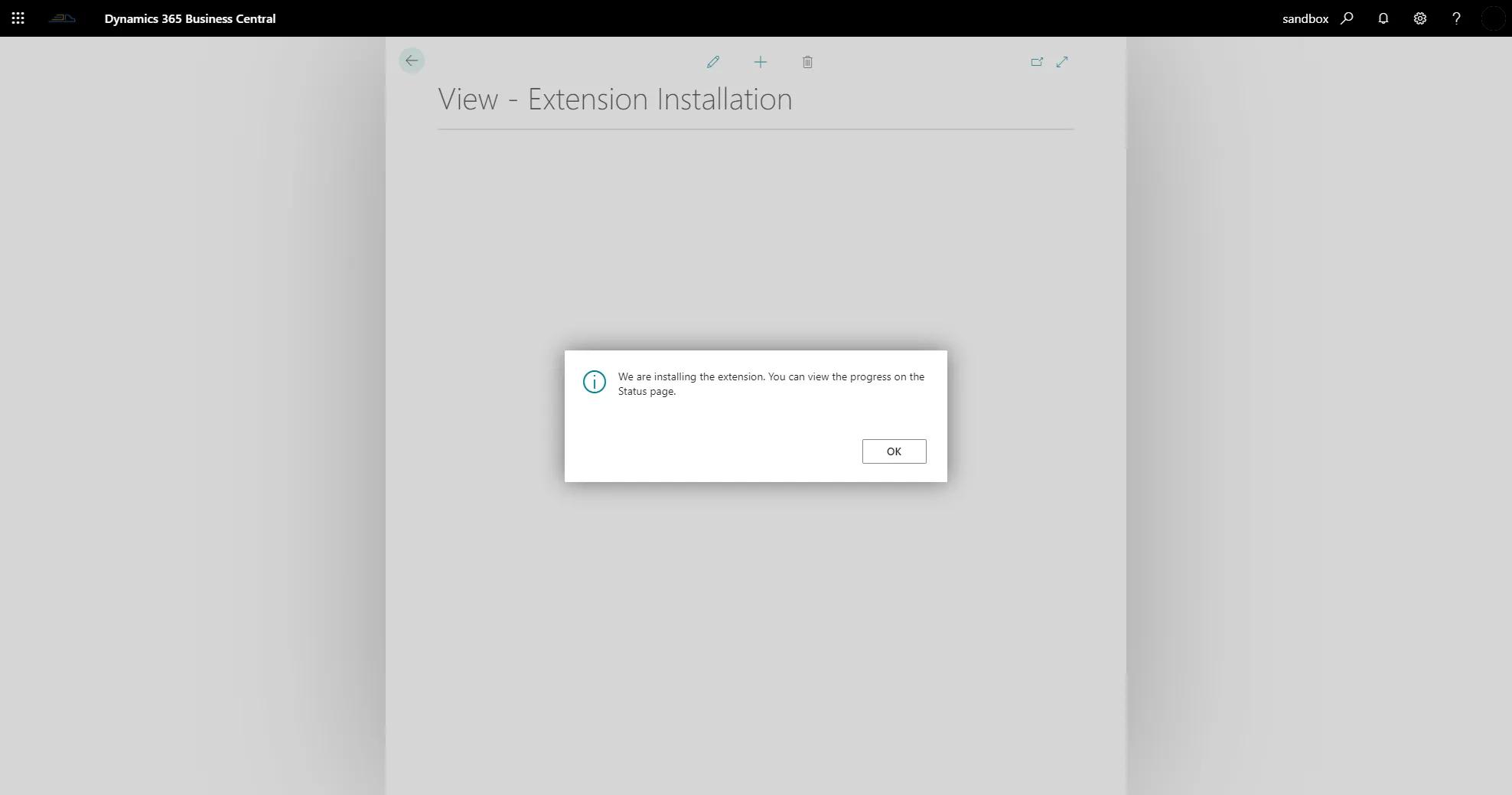
The app installation starts and runs in the background. An app installation is normally completed within 15 minutes.
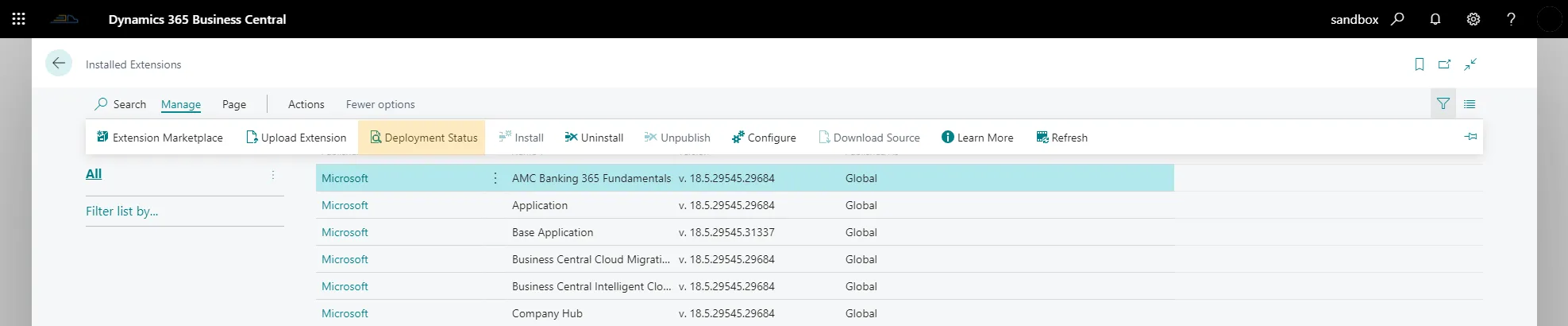
The installation status can be seen on the Deployment Status page, which you find under Extension Management.

When Business Central reloads after the app installation is complete, a message is shown to start the setup.

When the Shipping Central app is installed in Business Central, the next step is to start with the Onboarding Wizard.